
🔒 Security Reminder: SecuX will never ask for your 24-word recovery phrase.
Looking for help?
Find answers to your questions
- 1. Before You Start
- 2. Beginner Safety Guide (Safety and Security Information)
- 3. Set up a New V20 Wallet
-
Device Functions
DApps / Platforms
- Buy Crypto on Coinify on Web
- Connect to MetaMask Using QR-based
- Send or Swap Crypto Using MetaMask
- WalletConnect for DApps
- Withdraw from Binance to SecuX on Web
- Withdraw from Coinbase to SecuX on Web
- Assign and Remove a FIO Crypto Handle
- FIO Request
- Register a FIO Crypto Handle
- Register a FIO Domain
- Renew a FIO Domain
- Send to a FIO Crypto Handle
- Ada Portal — WEB
- Manage EVM Chains
- Receive Funds on SecuXess
- Send Funds on Web
- Send NFTs on SecuXess
- Add Accounts on Mobile
- Add Accounts on SecuXess
- Manage ERC-20 Tokens on Web
- Manage Tokens on Web
- Manage TRC-10/ 20 Tokens on Web
-
Device Functions
DApps / Platforms
- Buy Crypto on Coinify on Web
- Connect to MetaMask Using QR-based
- Send or Swap Crypto Using MetaMask
- WalletConnect for DApps
- Withdraw from Binance to SecuX on Web
- Withdraw from Coinbase to SecuX on Web
- Assign and Remove a FIO Crypto Handle
- FIO Request
- Register a FIO Crypto Handle
- Register a FIO Domain
- Renew a FIO Domain
- Send to a FIO Crypto Handle
- Ada Portal — WEB
- Manage EVM Chains
- Receive Funds on SecuXess
- Send Funds on Web
- Send NFTs on SecuXess
- Add Accounts on Mobile
- Add Accounts on SecuXess
- Manage ERC-20 Tokens on Web
- Manage Tokens on Web
- Manage TRC-10/ 20 Tokens on Web
- 1. Before You Start
- 2. Beginner Safety Guide (Safety and Security Information)
- 3. Set up a New W10 Wallet
- 4. Connect W10 to Computer via USB
-
Device Functions
DApps / Platforms
- Buy Crypto on Coinify on Web
- Withdraw from Binance to SecuX on Web
- Withdraw from Coinbase to SecuX on Web
- Ada Portal — WEB
- Manage EVM Chains
- Receive Funds on SecuXess
- Send Funds on Web
- Send NFTs on SecuXess
- Add Accounts on SecuXess
- Manage ERC-20 Tokens on Web
- Manage Tokens on Web
- Manage TRC-10/ 20 Tokens on Web
- 1. Create a New Wallet
- 2. Safety Guide
- 3. Device Setting
- 4. Download App
- 5. FCC Statement
-
DApps
NFTs
- Add to Favorites
- Display NFTs on Wallet
- Hide NFTs
- Manage NFT Gallery on SecuX Wallet App
- Receive NFTs
- Send NFTs
- Share NFTs
- View and Manage NFTs
- Add a New Wallet
- Connect / Disconnect Device
- Edit Wallet Name
- Firmware Check
- Remove Wallet
- Switch Wallet
- Blockchain Questions
- Crypto support
- Device Setup
- How SecuX’s NFT Wallet is Absolutely Changing NFT Storage Forever
- How to Store Shiba Inu Tokens in a SecuX Hardware Wallet
- Introducing SecuX’s Steel Crypto Wallet: The ‘X-Seed’
- Manage Solana (SOL) and Solana SPL tokens on SecuX V20, W20 and W10.
- Payment / Order / Shipment
- Security Questions
- SecuXess / SecuX Mobile App
- Send / Receive / Transactions
- Transaction / Network Fees
- USB / Bluetooth Connections
- Wallet and Device Issues
How to Swap Crypto in Your SecuX Wallet App
Table of Contents
Learn how to exchange cryptocurrencies directly within the SecuX Wallet App. Follow this step-by-step guide to securely swap tokens with just a few taps—no need to leave your wallet.
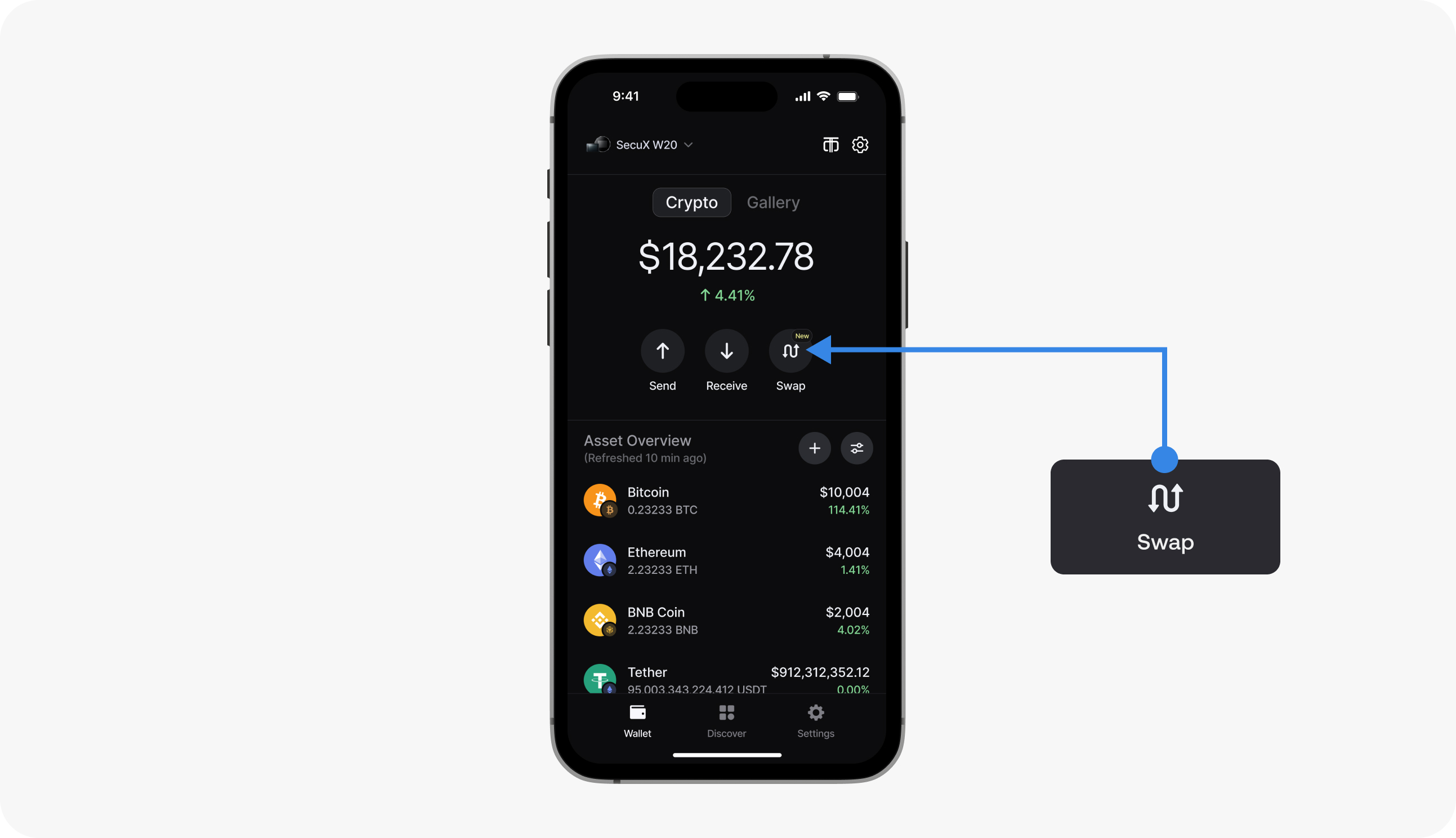
Go to Swap
Click the Swap icon to enter the swap process.
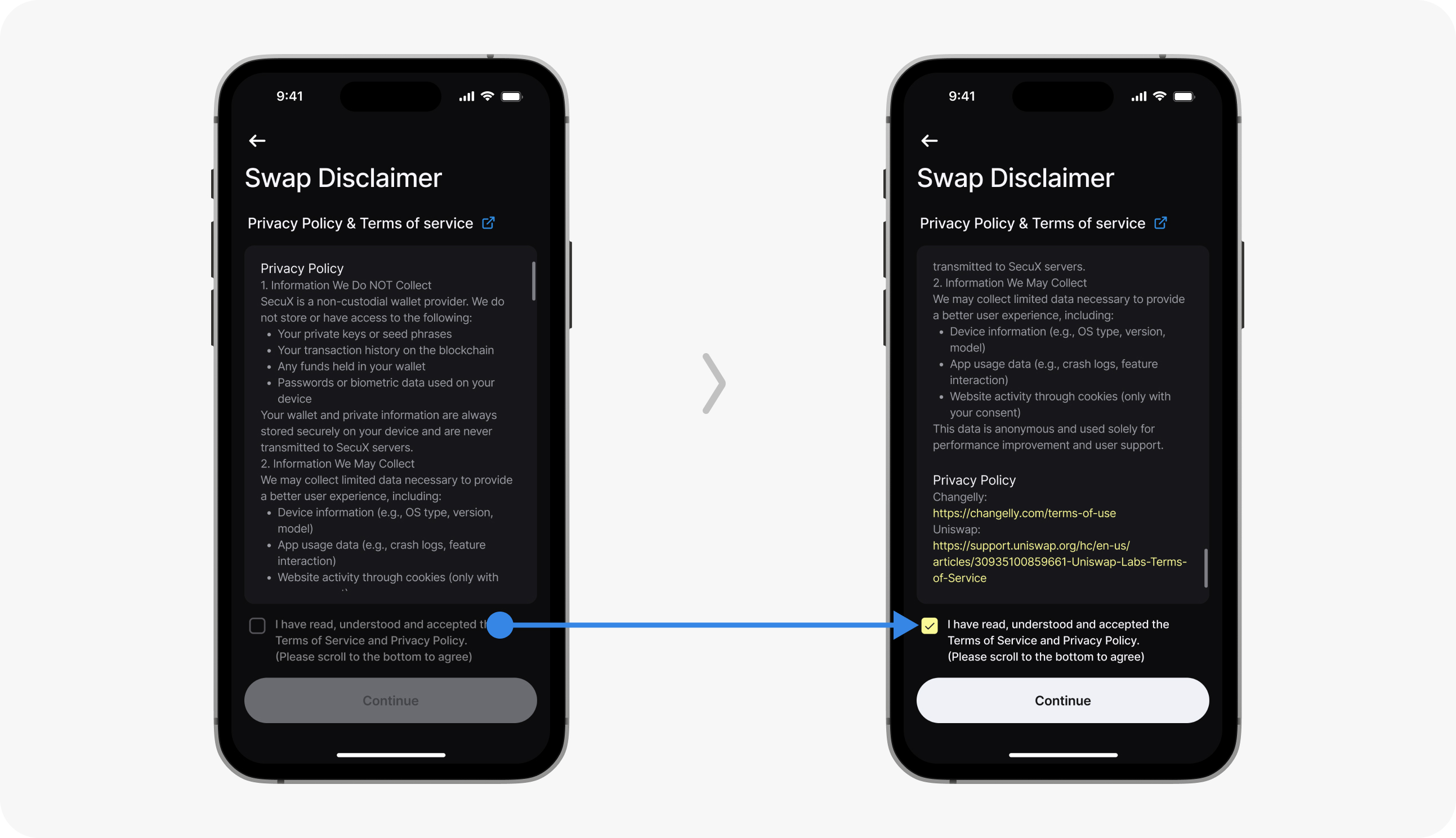
Check The Disclaimer
Scroll to the bottom and check to agree.
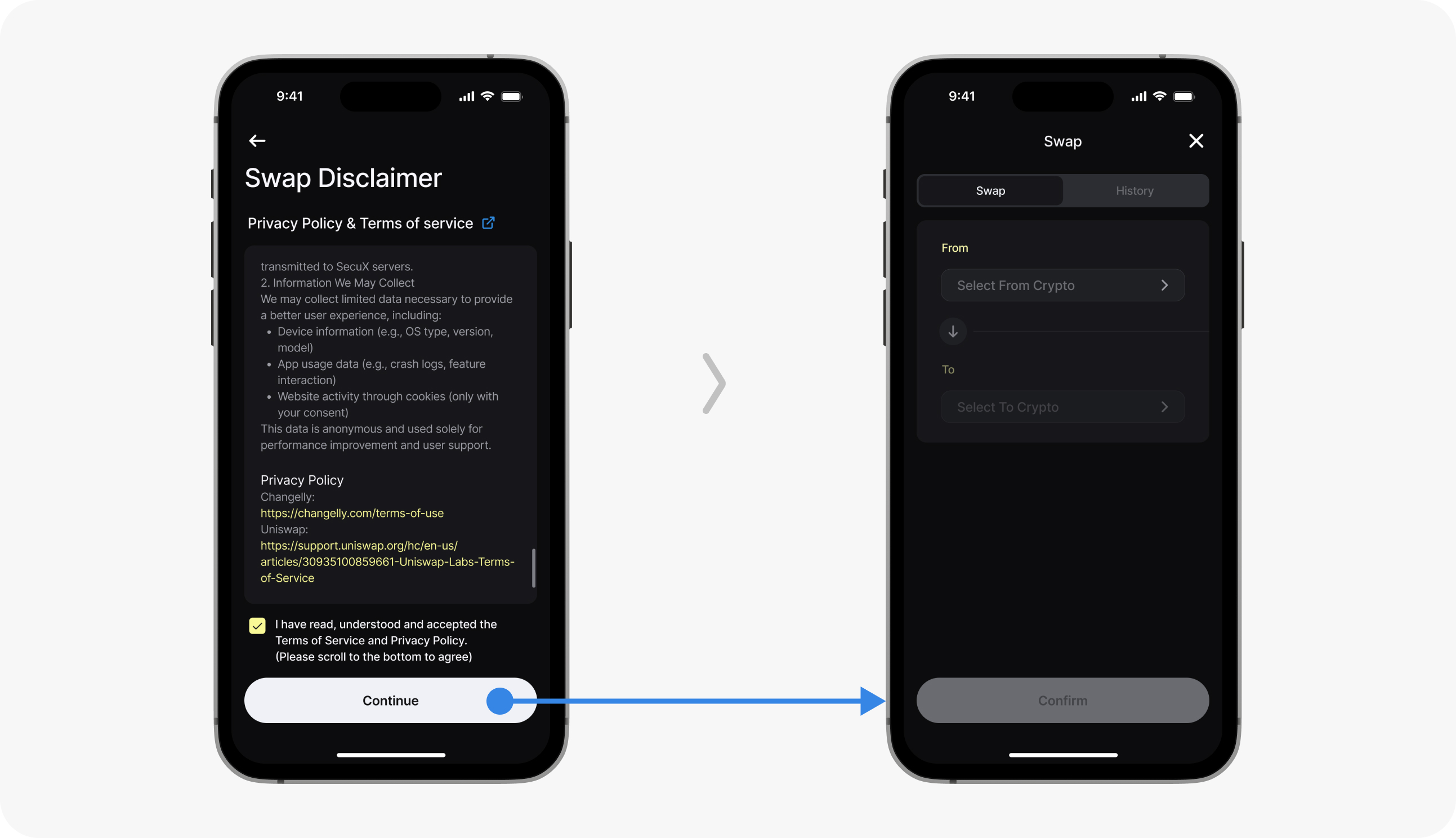
Enter The Swap Interface
Click "Continue" to enter the Swap interface.
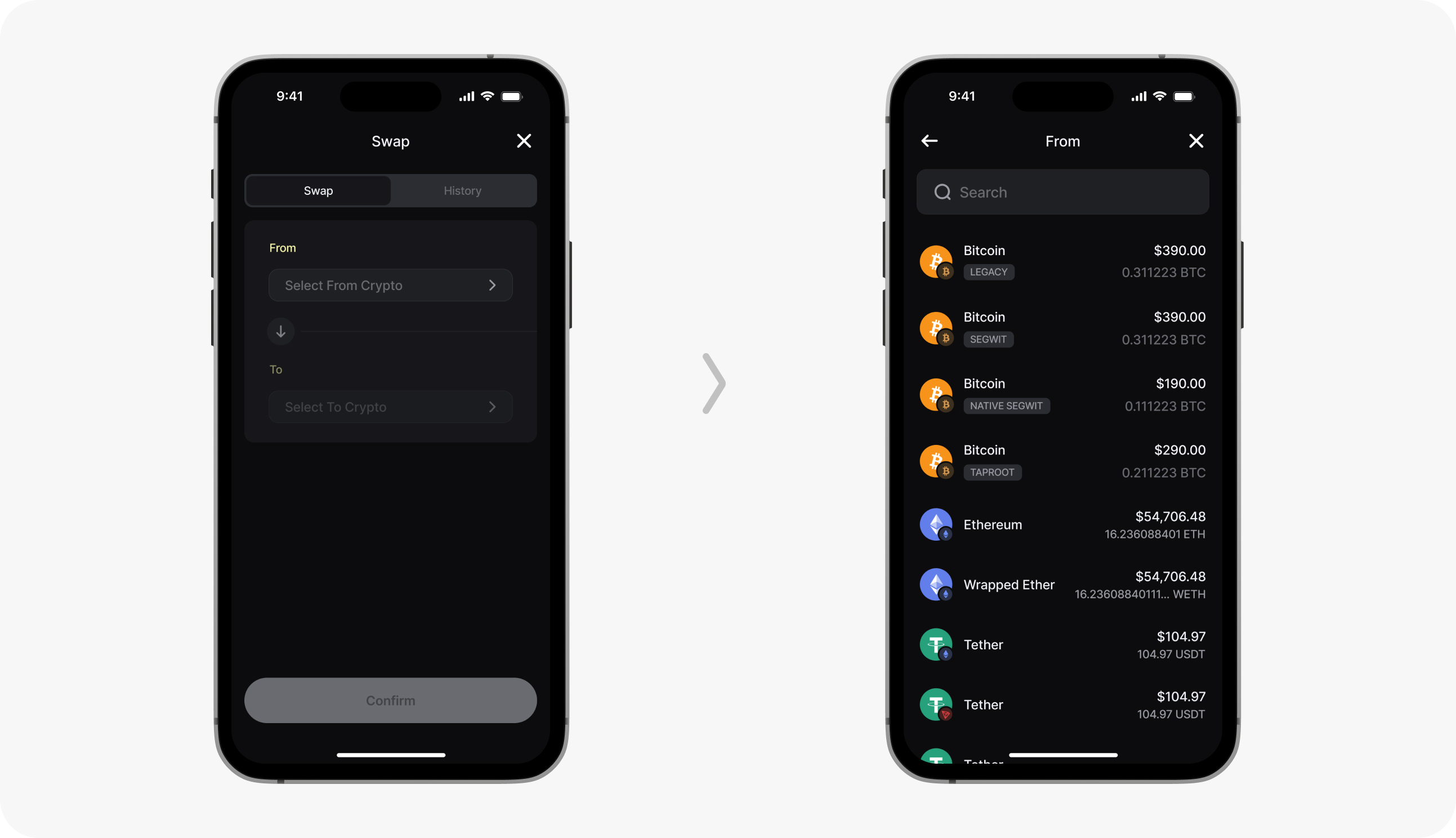
Enter The "From" Interface
Click the "From" field.(Swap supports cross-chain transactions)
Enter The "To" Interface
Click the "To" field.(Swap supports cross-chain transactions)
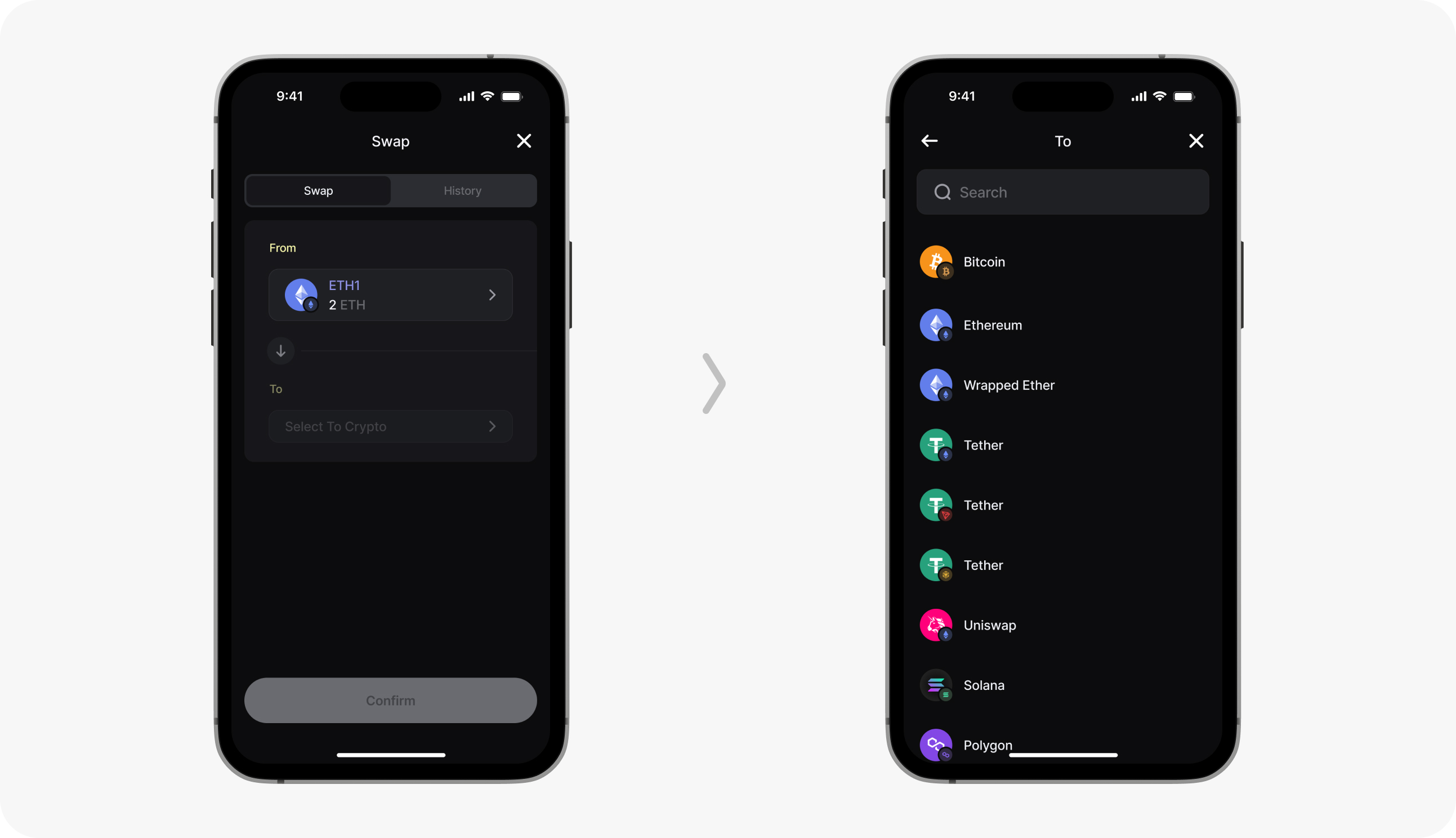
Enter The "To" Interface
Click the "To" field.
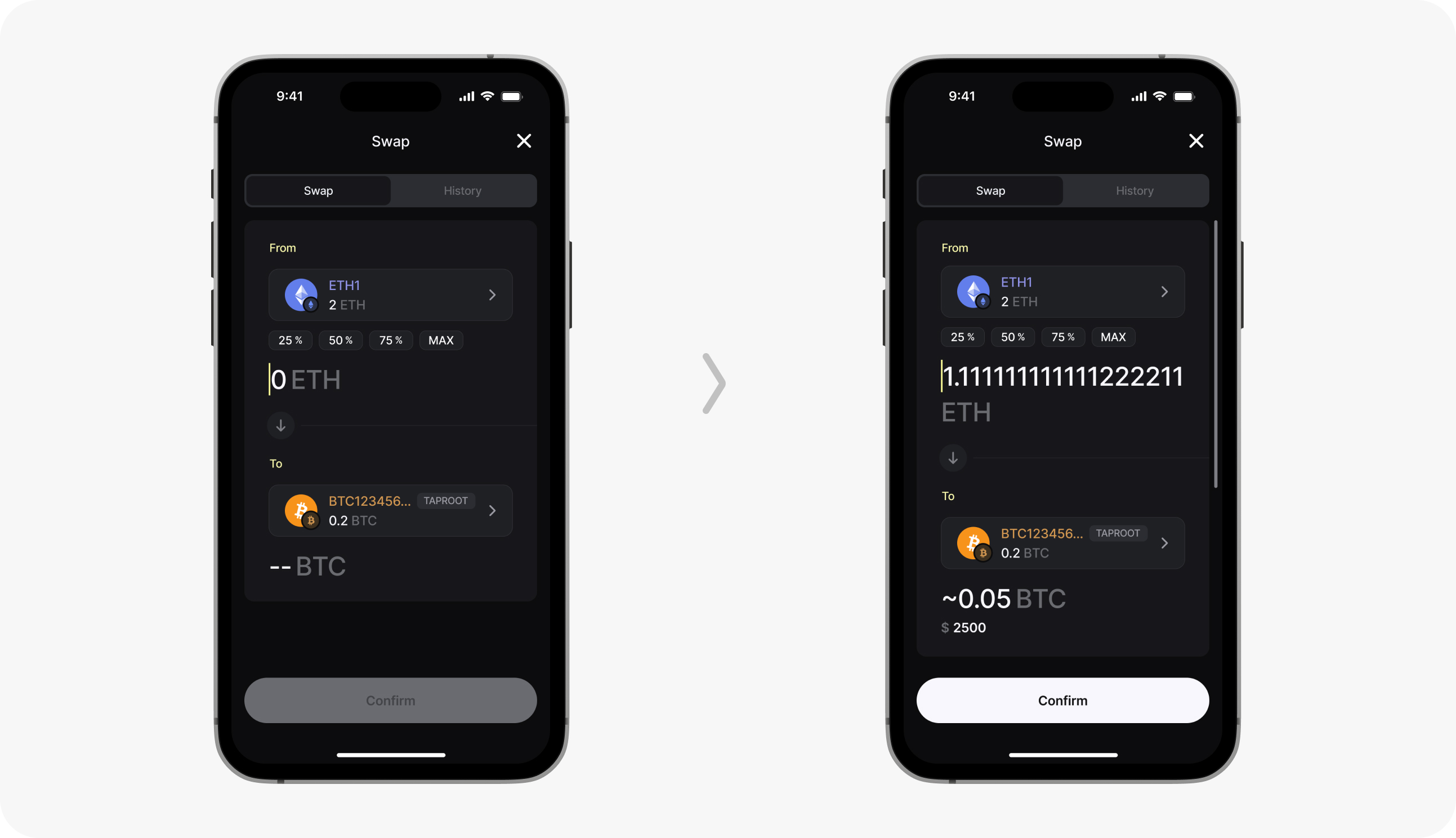
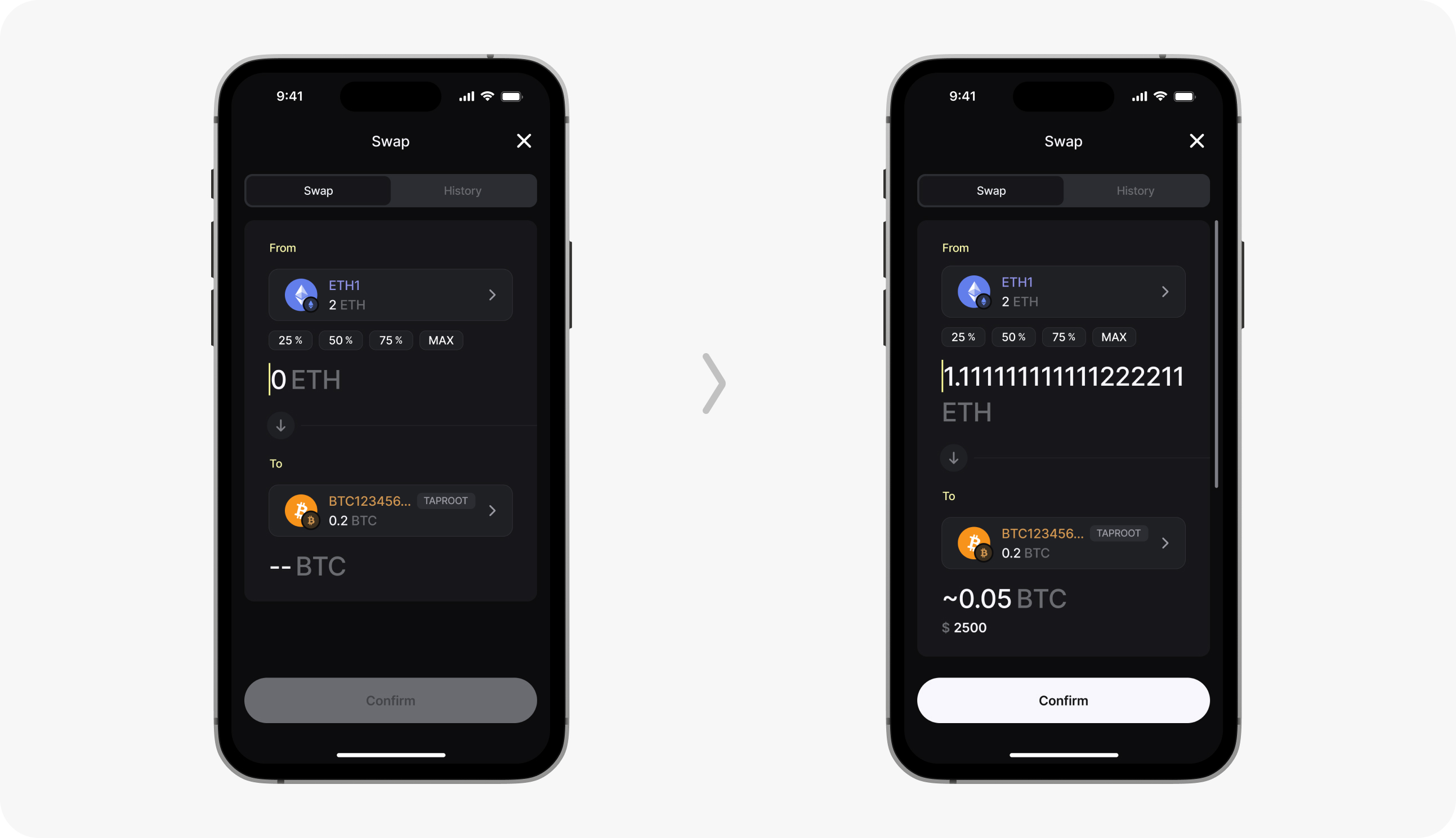
Enter The Amount
After entering the amount to be swapped, the corresponding value will be displayed.
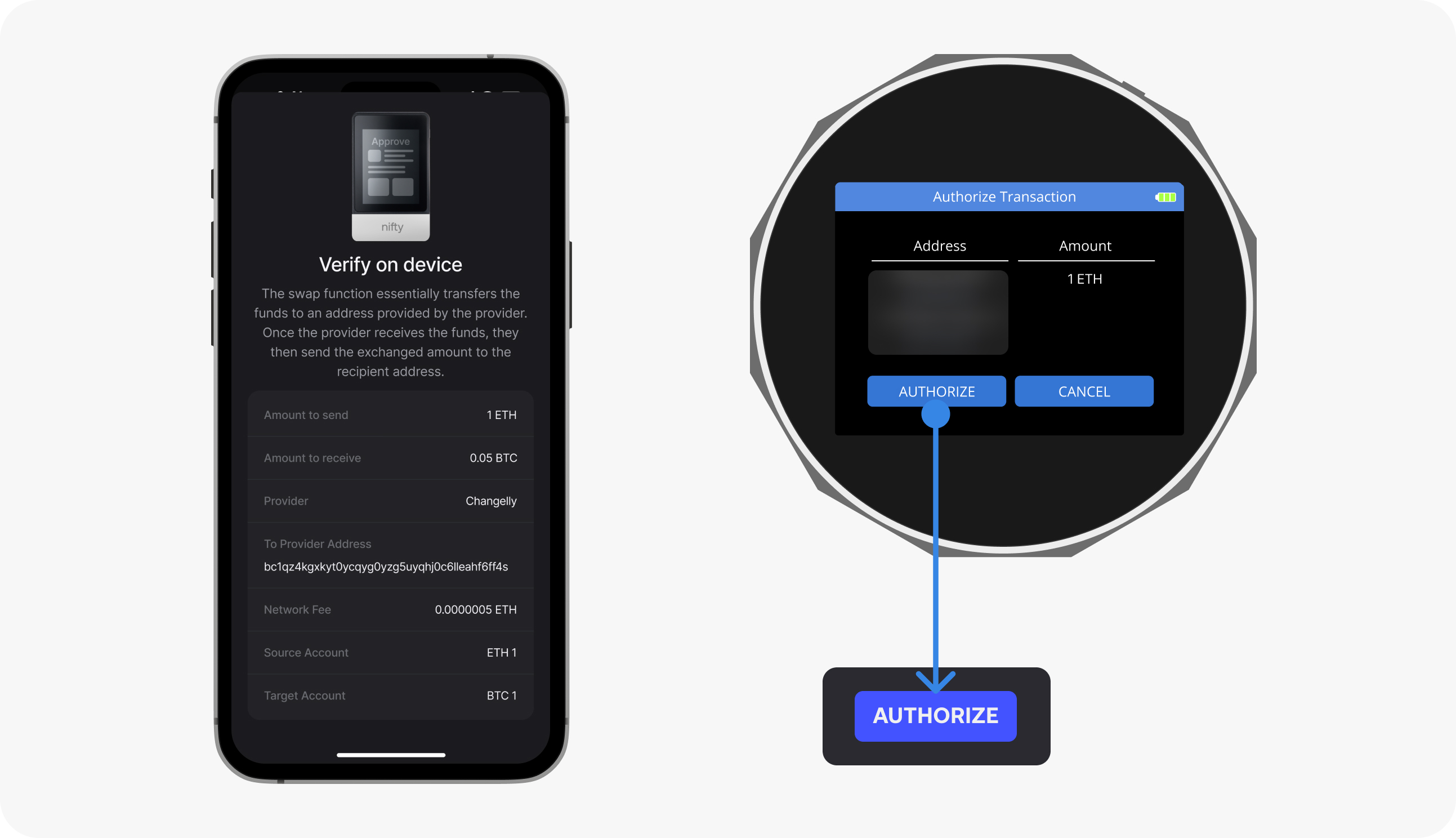
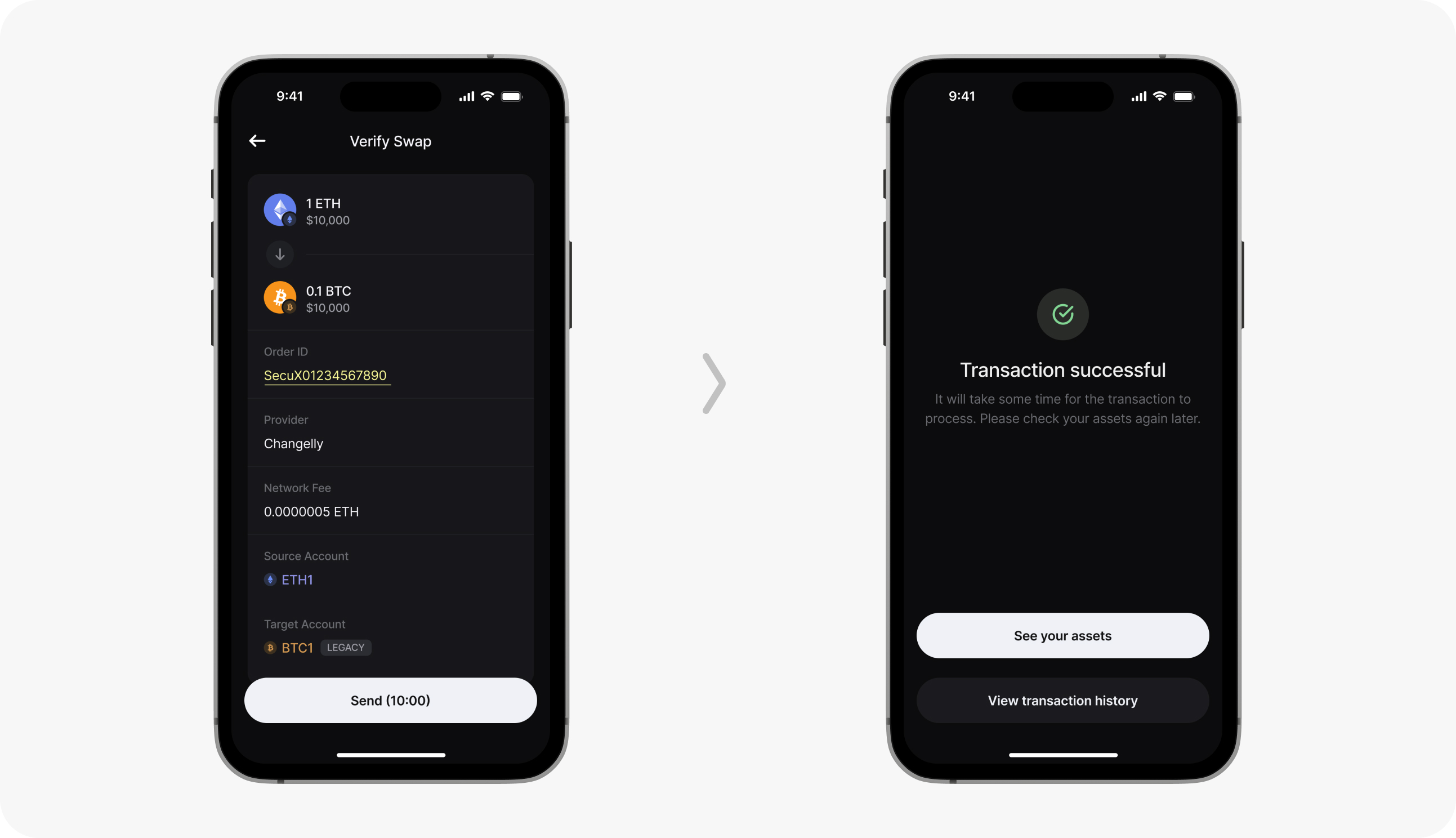
Confirm The Device Information
Confirm that the information on the device matches the information in the app.
Transaction Successful
1.The Order ID is clickable and will redirect to the corresponding supplier's website for more information.
2.After clicking Send, the transaction will be completed. You will need to wait for a while before receiving the assets.
Updated on 18 May 2026
What are your Feelings?
Thanks for your feedback.
Get 10% OFF
Sign up for our newsletter to receive 10%OFF and more discounts and offers!