
🔒 Security Reminder: SecuX will never ask for your 24-word recovery phrase.
Looking for help?
Find answers to your questions
- 1. Before You Start
- 2. Beginner Safety Guide (Safety and Security Information)
- 3. Set up a New V20 Wallet
-
Device Functions
DApps / Platforms
- Buy Crypto on Coinify on Web
- Connect to MetaMask Using QR-based
- Send or Swap Crypto Using MetaMask
- WalletConnect for DApps
- Withdraw from Binance to SecuX on Web
- Withdraw from Coinbase to SecuX on Web
- Assign and Remove a FIO Crypto Handle
- FIO Request
- Register a FIO Crypto Handle
- Register a FIO Domain
- Renew a FIO Domain
- Send to a FIO Crypto Handle
- Ada Portal — WEB
- Manage EVM Chains
- Receive Funds on SecuXess
- Send Funds on Web
- Send NFTs on SecuXess
- Add Accounts on Mobile
- Add Accounts on SecuXess
- Manage ERC-20 Tokens on Web
- Manage Tokens on Web
- Manage TRC-10/ 20 Tokens on Web
-
Device Functions
DApps / Platforms
- Buy Crypto on Coinify on Web
- Connect to MetaMask Using QR-based
- Send or Swap Crypto Using MetaMask
- WalletConnect for DApps
- Withdraw from Binance to SecuX on Web
- Withdraw from Coinbase to SecuX on Web
- Assign and Remove a FIO Crypto Handle
- FIO Request
- Register a FIO Crypto Handle
- Register a FIO Domain
- Renew a FIO Domain
- Send to a FIO Crypto Handle
- Ada Portal — WEB
- Manage EVM Chains
- Receive Funds on SecuXess
- Send Funds on Web
- Send NFTs on SecuXess
- Add Accounts on Mobile
- Add Accounts on SecuXess
- Manage ERC-20 Tokens on Web
- Manage Tokens on Web
- Manage TRC-10/ 20 Tokens on Web
- 1. Before You Start
- 2. Beginner Safety Guide (Safety and Security Information)
- 3. Set up a New W10 Wallet
- 4. Connect W10 to Computer via USB
-
Device Functions
DApps / Platforms
- Buy Crypto on Coinify on Web
- Withdraw from Binance to SecuX on Web
- Withdraw from Coinbase to SecuX on Web
- Ada Portal — WEB
- Manage EVM Chains
- Receive Funds on SecuXess
- Send Funds on Web
- Send NFTs on SecuXess
- Add Accounts on SecuXess
- Manage ERC-20 Tokens on Web
- Manage Tokens on Web
- Manage TRC-10/ 20 Tokens on Web
- 1. Create a New Wallet
- 2. Safety Guide
- 3. Device Setting
- 4. Download App
- 5. FCC Statement
-
DApps
NFTs
- Add to Favorites
- Display NFTs on Wallet
- Hide NFTs
- Manage NFT Gallery on SecuX Wallet App
- Receive NFTs
- Send NFTs
- Share NFTs
- View and Manage NFTs
- Add a New Wallet
- Connect / Disconnect Device
- Edit Wallet Name
- Firmware Check
- Remove Wallet
- Switch Wallet
- Blockchain Questions
- Crypto support
- Device Setup
- How SecuX’s NFT Wallet is Absolutely Changing NFT Storage Forever
- How to Store Shiba Inu Tokens in a SecuX Hardware Wallet
- Introducing SecuX’s Steel Crypto Wallet: The ‘X-Seed’
- Manage Solana (SOL) and Solana SPL tokens on SecuX V20, W20 and W10.
- Payment / Order / Shipment
- Security Questions
- SecuXess / SecuX Mobile App
- Send / Receive / Transactions
- Transaction / Network Fees
- USB / Bluetooth Connections
- Wallet and Device Issues
2. Safety Guide
Table of Contents
STEP 01
Check your package
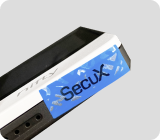
Make sure the Tamper-Resistant-Labels are intact, have not been broken, torn, or tampered with, both on the box and device’s USB port.
 Good Good |
 Bad Bad |
|
| On the Box |  |
 |
| On the Device | 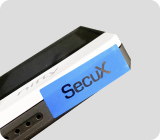 |
 |
STEP 02
For Safety

Environment
Do not use in wet locations, such as near a sink, bathtub, or shower stall, and don’t connect or disconnect the device’s USB port with wet hands.

Handling
Always handle the device with care. Do not throw, drop, smash the device or engage in any activities that may cause physical damage to the device.

Temperature
The device may become warm during normal use. Disconnect immediately when the device if you suspect irregular overheating.
STEP 03
For Security

Beware of phishing
Do not use the device if you suspect any illegal activities regarding your laptop or desktop.

Store offline
Do not store or share any security information online such as your password.

Supported OS
Windows®10+ / macOS®12+
STEP 04
Check your surroundings

Secured network
Your mobile device or your laptop/ desktop is NOT connected to an unsecured network.

Private environment
You are NOT in a public space with many people around you.

Turn off surveillance device
You are NOT exposed to any unsecured surveillance or cameras.
STEP 05
Prepare for setup

Pen or pencil
To write down 24 recovery words. Permanent ink preferable.

USB power adapter
Charge your wallet for at least 2 hours.

Mobile phone/Tablet
iOS13+ or Android 7.0+

Next step: Getting Started

Updated on 18 May 2026
What are your Feelings?
Thanks for your feedback.
Get 10% OFF
Sign up for our newsletter to receive 10%OFF and more discounts and offers!