
🔒 Security Reminder: SecuX will never ask for your 24-word recovery phrase.
Looking for help?
Find answers to your questions
- 1. Before You Start
- 2. Beginner Safety Guide (Safety and Security Information)
- 3. Set up a New V20 Wallet
-
Device Functions
DApps / Platforms
- Buy Crypto on Coinify on Web
- Connect to MetaMask Using QR-based
- Send or Swap Crypto Using MetaMask
- WalletConnect for DApps
- Withdraw from Binance to SecuX on Web
- Withdraw from Coinbase to SecuX on Web
- Assign and Remove a FIO Crypto Handle
- FIO Request
- Register a FIO Crypto Handle
- Register a FIO Domain
- Renew a FIO Domain
- Send to a FIO Crypto Handle
- Ada Portal — WEB
- Manage EVM Chains
- Receive Funds on SecuXess
- Send Funds on Web
- Send NFTs on SecuXess
- Add Accounts on Mobile
- Add Accounts on SecuXess
- Manage ERC-20 Tokens on Web
- Manage Tokens on Web
- Manage TRC-10/ 20 Tokens on Web
-
Device Functions
DApps / Platforms
- Buy Crypto on Coinify on Web
- Connect to MetaMask Using QR-based
- Send or Swap Crypto Using MetaMask
- WalletConnect for DApps
- Withdraw from Binance to SecuX on Web
- Withdraw from Coinbase to SecuX on Web
- Assign and Remove a FIO Crypto Handle
- FIO Request
- Register a FIO Crypto Handle
- Register a FIO Domain
- Renew a FIO Domain
- Send to a FIO Crypto Handle
- Ada Portal — WEB
- Manage EVM Chains
- Receive Funds on SecuXess
- Send Funds on Web
- Send NFTs on SecuXess
- Add Accounts on Mobile
- Add Accounts on SecuXess
- Manage ERC-20 Tokens on Web
- Manage Tokens on Web
- Manage TRC-10/ 20 Tokens on Web
- 1. Before You Start
- 2. Beginner Safety Guide (Safety and Security Information)
- 3. Set up a New W10 Wallet
- 4. Connect W10 to Computer via USB
-
Device Functions
DApps / Platforms
- Buy Crypto on Coinify on Web
- Withdraw from Binance to SecuX on Web
- Withdraw from Coinbase to SecuX on Web
- Ada Portal — WEB
- Manage EVM Chains
- Receive Funds on SecuXess
- Send Funds on Web
- Send NFTs on SecuXess
- Add Accounts on SecuXess
- Manage ERC-20 Tokens on Web
- Manage Tokens on Web
- Manage TRC-10/ 20 Tokens on Web
- 1. Create a New Wallet
- 2. Safety Guide
- 3. Device Setting
- 4. Download App
- 5. FCC Statement
-
DApps
NFTs
- Add to Favorites
- Display NFTs on Wallet
- Hide NFTs
- Manage NFT Gallery on SecuX Wallet App
- Receive NFTs
- Send NFTs
- Share NFTs
- View and Manage NFTs
- Add a New Wallet
- Connect / Disconnect Device
- Edit Wallet Name
- Firmware Check
- Remove Wallet
- Switch Wallet
- Blockchain Questions
- Crypto support
- Device Setup
- How SecuX’s NFT Wallet is Absolutely Changing NFT Storage Forever
- How to Store Shiba Inu Tokens in a SecuX Hardware Wallet
- Introducing SecuX’s Steel Crypto Wallet: The ‘X-Seed’
- Manage Solana (SOL) and Solana SPL tokens on SecuX V20, W20 and W10.
- Payment / Order / Shipment
- Security Questions
- SecuXess / SecuX Mobile App
- Send / Receive / Transactions
- Transaction / Network Fees
- USB / Bluetooth Connections
- Wallet and Device Issues
Receive Funds on SecuXess
Table of Contents
We will guide you step-by-step on how to receive funds using the SecuXess web application.
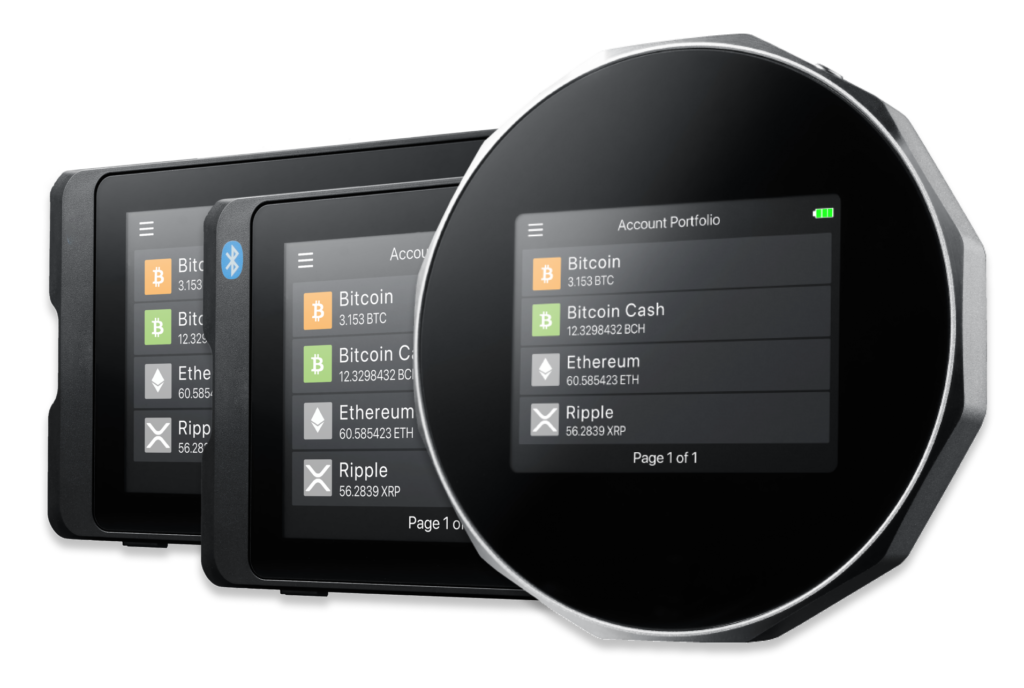
Generate Receiving Address OFFLINE
1. Unlock your device with PIN.
2. Choose the desired account where you want to receive funds.
3. Share the receiving address via QR code or text format.
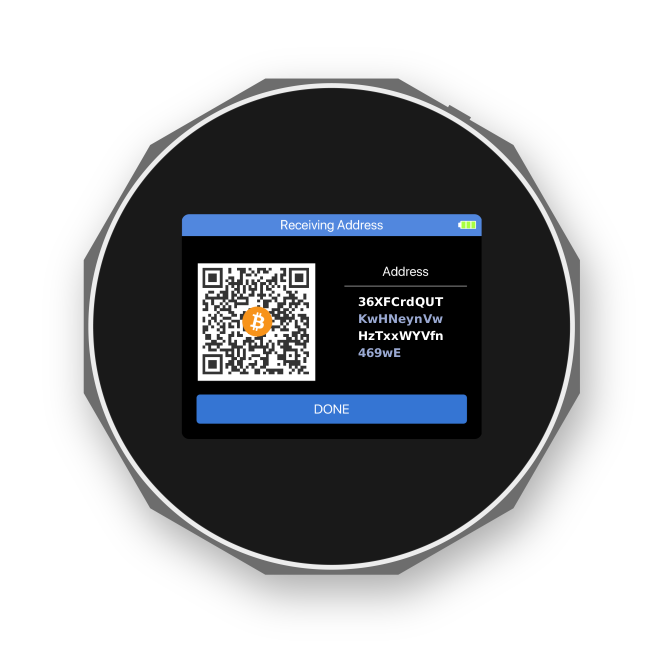
OR
Generate Receiving Address on SecuXess Web
1. Connect your device to your computer via Bluetooth or USB connection.
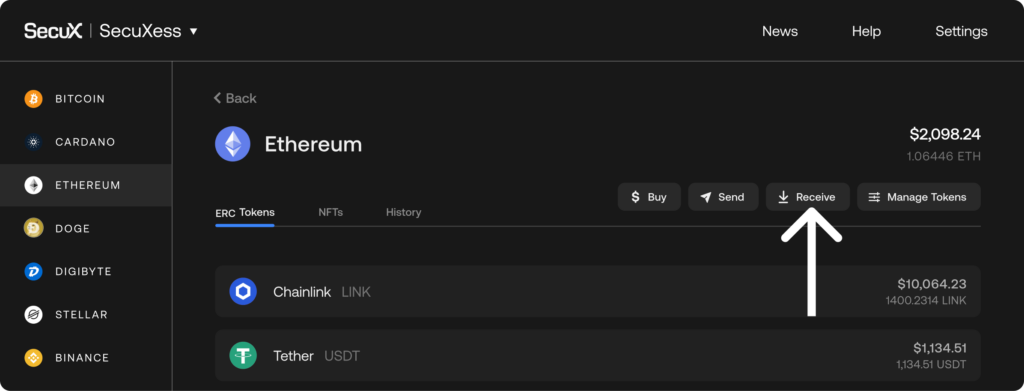
2. Select the cryptocurrency you wish to receive.
3. Choose the desired account where you want to receive funds.
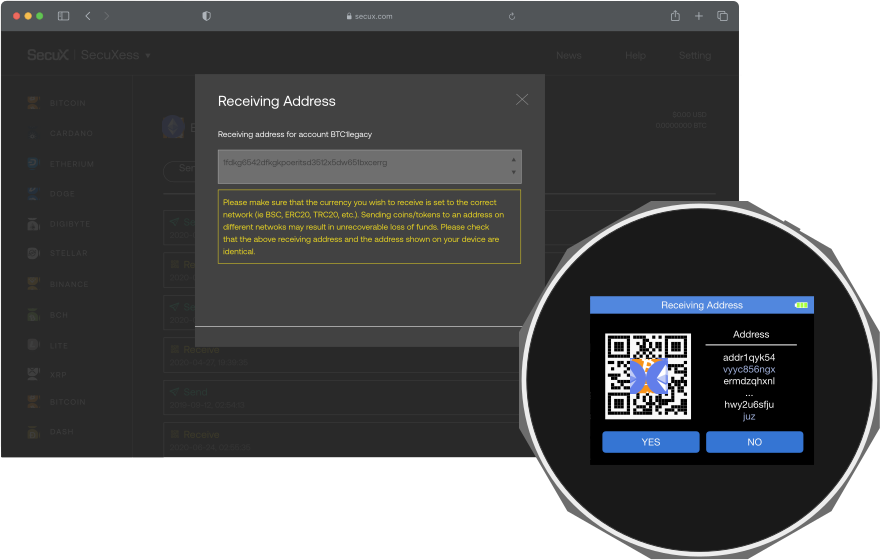
4. Click Receive and check if the address on the web page matches the address on your device.
5. Press YES on your device if the 2 addresses are identical, then you can copy the address and provide it to your sender.
6. Press NO if the address on the web page is different from the address shown on your device, and contact help@secuxtech.com for further assistance.
Confirm Received Funds
1. Connect your device to computer via Bluetooth or USB connection.
2. Select the cryptocurrency in which you should receive funds.
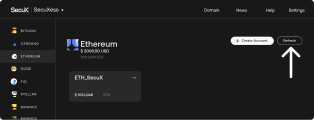
3. Click on Refresh in the upper right corner.
4. Confirm the balance in the account information.
NOTE: Transactions on the blockchain network typically take around 5-10 minutes or longer to be completed, depending on the current network traffic.
IMPORTANT: If you do not see your funds in your account after a significant amount of time, please contact the service provider of the sender or reach out to our customer service at help@secuxtech.com before initiating another transaction. This is to prevent unnecessary gas fee charges for unsuccessful transactions.
Updated on 04 Feb 2026
What are your Feelings?
Thanks for your feedback.
Get 10% OFF
Sign up for our newsletter to receive 10%OFF and more discounts and offers!