
🔒 Security Reminder: SecuX will never ask for your 24-word recovery phrase.
Looking for help?
Find answers to your questions
- Before you start
- Device Functions
- Firmware Update on Mobile
- Firmware Update via SecuX Mobile App
- Restore an Existing Wallet
- Safety Guide (Safety and Security Information)
- Setup a New Wallet
-
How to Connect
Send and Receive
Manage Coins & Tokens
DApps / Platforms
- Connect to MetaMask Using QR-based
- Send or Swap Crypto Using MetaMask
- WalletConnect for DApps
- Withdraw from Binance to SecuX on Mobile
- Withdraw from Coinbase to SecuX on Mobile
- Before You Start
- Beginner Safety Guide (Safety and Security Information)
- Set up a New V20 Wallet
-
Device Functions
- Device Functions
- Firmware Update on Mobile
- Firmware Update on Web
- Firmware Update via SecuX Mobile App
- Hidden Wallet
- Recovery Seed Phrase Check
- Buy Crypto on Coinify on Web
- Connect to MetaMask Using QR-based
- Send or Swap Crypto Using MetaMask
- WalletConnect for DApps
- Withdraw from Binance to SecuX on Mobile
- Withdraw from Binance to SecuX on Web
- Withdraw from Coinbase to SecuX on Mobile
- Withdraw from Coinbase to SecuX on Web
- Assign and Remove a FIO Crypto Handle
- FIO Request
- Register a FIO Crypto Handle
- Register a FIO Domain
- Renew a FIO Domain
- Send to a FIO Crypto Handle
- Stake FIO Token
- Ada Portal — WEB
- Manage EVM Chains
- Receive Funds on Web
- Receive on Mobile
- Send Funds on Mobile
- Send Funds on Web
- Send NFTs on Mobile App
- Send NFTs on Web
- Connect V20 to Computer via Bluetooth
- Connect V20 to Computer via USB
- Connect V20 to Mobile Device via Bluetooth
- Add Accounts on Mobile
- Add Accounts on Web
- Manage BEP-20 Tokens on Mobile
- Manage BEP-20 Tokens on Web
- Manage ERC-20 Tokens on Mobile
- Manage ERC-20 Tokens on Web
- Manage TRC-10/ 20 Tokens on Web
- Manage TRC-10/20 Tokens on Mobile
- Before You Start
- Beginner Safety Guide (Safety and Security Information)
- Set up a New W20 Wallet
-
Device Functions
- Device Functions
- Firmware Update on Mobile
- Firmware Update on Web
- Firmware Update via SecuX Mobile App
- Hidden Wallet
- Recovery Seed Phrase Check
- Buy Crypto on Coinify on Web
- Connect to MetaMask Using QR-based
- Send or Swap Crypto Using MetaMask
- WalletConnect for DApps
- Withdraw from Binance to SecuX on Mobile
- Withdraw from Binance to SecuX on Web
- Withdraw from Coinbase to SecuX on Mobile
- Withdraw from Coinbase to SecuX on Web
- Assign and Remove a FIO Crypto Handle
- FIO Request
- Register a FIO Crypto Handle
- Register a FIO Domain
- Renew a FIO Domain
- Send to a FIO Crypto Handle
- Stake FIO Token
- Ada Portal — WEB
- Manage EVM Chains
- Receive Funds on Web
- Receive on Mobile
- Send Funds on Mobile
- Send Funds on Web
- Send NFTs on Mobile App
- Send NFTs on Web
- Connect W20 to Computer via Bluetooth
- Connect W20 to Computer via USB
- Connect W20 to Mobile Device via Bluetooth
- Add Accounts on Mobile
- Add Accounts on Web
- Manage BEP-20 Tokens on Mobile
- Manage BEP-20 Tokens on Web
- Manage ERC-20 Tokens on Mobile
- Manage ERC-20 Tokens on Web
- Manage TRC-10/ 20 Tokens on Web
- Manage TRC-10/20 Tokens on Mobile
- Before You Start
- Beginner Safety Guide (Safety and Security Information)
- Set up a New W10 Wallet
-
Device Functions
DApps / Platforms
- Buy Crypto on Coinify on Web
- Withdraw from Binance to SecuX on Web
- Withdraw from Coinbase to SecuX on Web
- Assign and Remove a FIO Crypto Handle
- FIO Request
- Register a FIO Crypto Handle
- Register a FIO Domain
- Renew a FIO Domain
- Send to a FIO Crypto Handle
- Stake FIO Token
- Add Accounts on Web
- Manage BEP-20 Tokens on Web
- Manage ERC-20 Tokens on Web
- Manage TRC-10/ 20 Tokens on Web
- Create a New Wallet
- Device Setting
- Download App
- Safety Guide
-
DApps
NFTs
- Add to Favorites
- Display NFTs on Wallet
- Hide NFTs
- Manage NFT Gallery on SecuX Wallet App
- Receive NFTs
- Send NFTs
- Share NFTs
- View and Manage NFTs
- Add a New Wallet
- Connect / Disconnect Device
- Edit Wallet Name
- Firmware Check
- Remove Wallet
- Switch Wallet
- Blockchain Questions
- Crypto support
- Device Setup
- How SecuX’s NFT Wallet is Absolutely Changing NFT Storage Forever
- How to Store Shiba Inu Tokens in a SecuX Hardware Wallet
- Introducing SecuX’s Steel Crypto Wallet: The ‘X-Seed’
- Manage Solana (SOL) and Solana SPL tokens on SecuX V20, W20 and W10.
- Payment / Order / Shipment
- Security Questions
- SecuXess / SecuX Mobile App
- Send / Receive / Transactions
- Transaction / Network Fees
- USB / Bluetooth Connections
- Wallet and Device Issues
Connect W20 to Computer via USB
Table of Contents
We’ll guide you step-by-step on how to connect W20 wallet to computer on SecuXess web application via USB cable.
* Please ensure that Bluetooth is turned off on your wallet device when connecting it via USB.
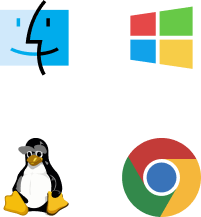
Compatibility of Computer and Browser
1. Computer OS
- Mac OS 10.13.6+
- Windows 10+
- Linux
- Chrome OS
2. Browser
- Chrome V.71+
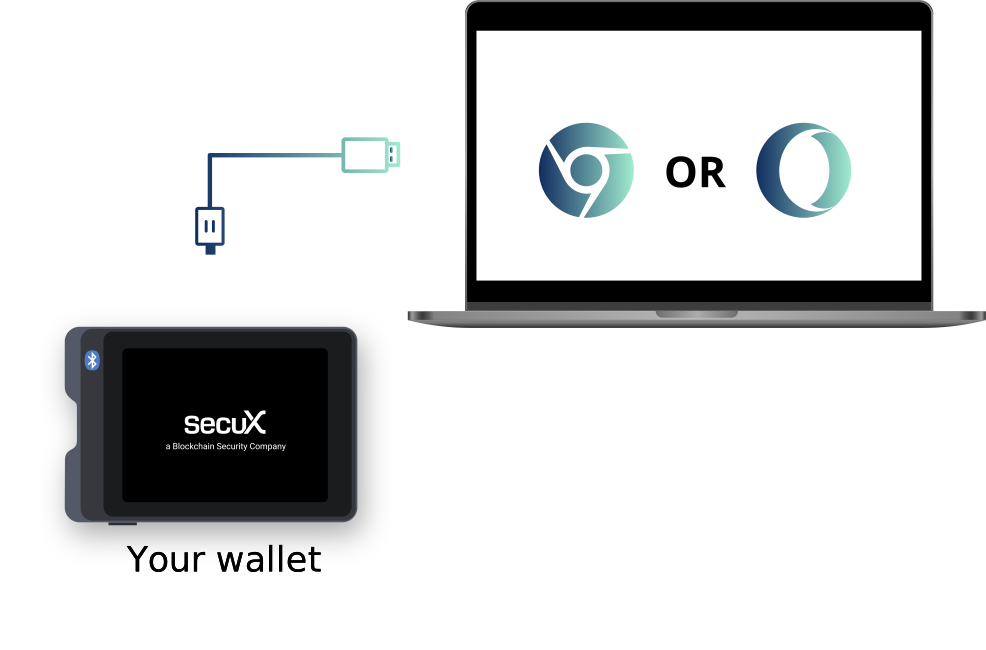
Connect with USB
1. Unlock your SecuX wallet with your PIN.
2. Connect the SecuX wallet to your computer via USB.
3. Go to SecuXess using one of the supported browsers, such as Google Chrome.
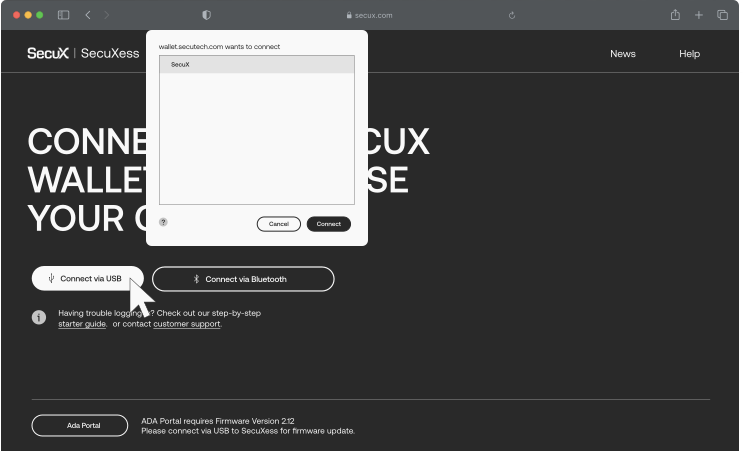
Choose Your Device
1. On the SecuXess web page, click on Connect via USB.
2. Choose your device name to connect.
*If the device is not detected by the computer, make sure you are using the original cable provided in the original package, with the wallet unlocked and its Bluetooth feature disabled.
*If the problem continues, attempt using an alternate USB cable and USB port, confirm that you are using the Chrome browser, and reach out to support for assistance.
Congratulations!
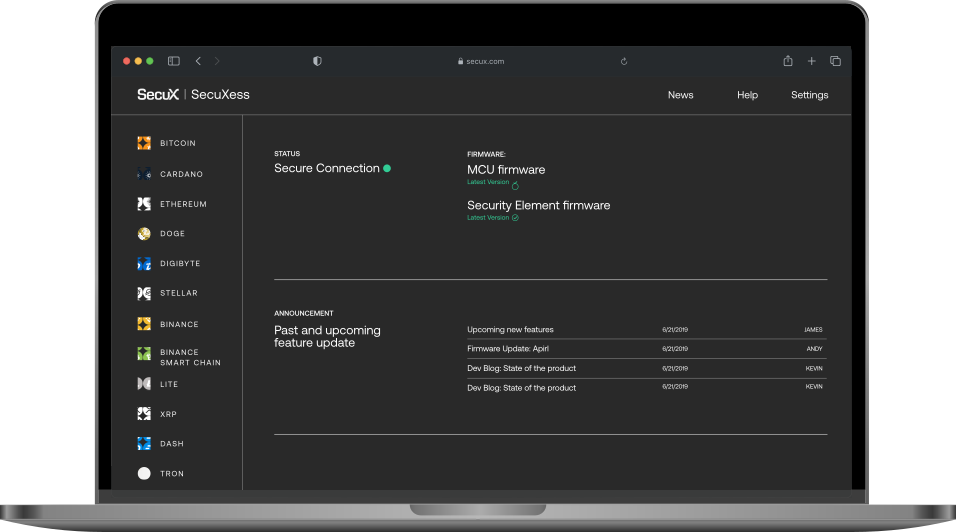
Your wallet is now connected to the SecuXess web application successfully.
Updated on 10 Apr 2024
What are your Feelings?
Thanks for your feedback.
Get 10% OFF
Sign up for our newsletter to receive 10%OFF and more discounts and offers!